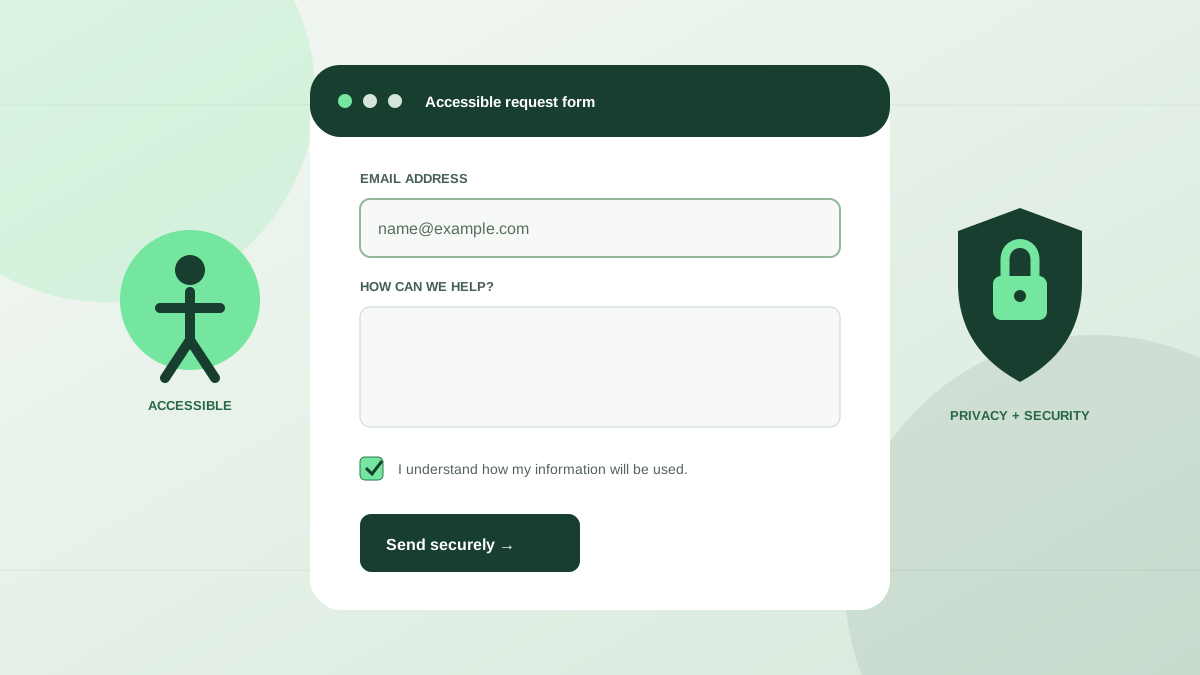
A form asks a visitor to trust your organization with effort and information. Accessibility determines whether they can complete the task. Privacy determines whether you collect and use their information responsibly. Security determines whether the system handles untrusted input safely. Reliability determines whether the intended action actually reaches your team.
These disciplines reinforce one another when they begin with the same question: what does the person need to accomplish, and what is the minimum information and complexity required? This practical guide helps small businesses and nonprofits improve forms without treating compliance as a collection of badges.
Begin with purpose and data minimization
Write one sentence describing the form’s purpose. Then review every field against that purpose. If your team cannot explain how a field changes processing, response, eligibility, or a required record, remove it or make it optional. Asking for less reduces completion effort and reduces the amount of personal information you must protect.
Avoid collecting sensitive information through a general contact form. Health details, government identifiers, financial records, passwords, and confidential case information require purpose-built controls and policies. A short message can invite the person to request a secure follow-up instead of placing sensitive material into email notifications.
Action checklist
- Document the form’s purpose and owner.
- Classify the information each field collects.
- Remove fields that are merely “nice to have.”
- Use a secure channel for sensitive follow-up.
- Set a retention period and deletion process.
Use real labels and understandable instructions
The W3C Web Accessibility Initiative recommends identifying controls with labels, grouping related controls, providing instructions, validating input, and notifying users about outcomes. A visible label should remain available after the visitor starts typing. Placeholder text can show an example, but it should not be the only label.
Make labels specific. “Name” may be unclear when the organization needs a legal name, preferred name, or organization name. Put format instructions before the field or connect them programmatically with the control. Do not hide critical requirements until after an error.
- Associate each label and input programmatically.
- Group related radio buttons or checkboxes with fieldset and legend.
- Explain required formats before entry.
- Identify required and optional fields in words, not colour alone.
- Keep help text close to the field it explains.
Make keyboard and mobile use predictable
A person should be able to move through the form with the Tab key in a logical order, see where focus is, select options, activate the submit button, and recover from errors without a mouse. Avoid positive tabindex values that manually rearrange focus; good document order usually creates the right keyboard order.
On mobile, use a single-column layout, appropriate input types, autocomplete tokens, and generous spacing. WCAG 2.2 adds guidance related to target size and focus not being obscured. Sticky banners, chat widgets, and cookie notices must not cover the field a keyboard user is editing.
Action checklist
- Complete the form using only a keyboard.
- Check that focus is visible against every background.
- Verify no sticky interface hides the focused field.
- Use appropriate input types for email, phone, date, and URL.
- Test reflow at 320 CSS pixels and browser zoom at 200%.
Write errors that help people recover
An error message should identify the field, describe the problem, and suggest a correction when possible. “Invalid input” does none of those things. Use text as well as visual styling, connect the message to the control, and move focus or provide an error summary when the submission contains multiple problems.
Preserve valid entries after an error. Forcing someone to retype an entire form increases abandonment and can be particularly difficult for people with cognitive, motor, or vision disabilities. For financial or legally significant submissions, provide a review step or a clear way to confirm and correct information before final commitment.
- Say “Enter an email address in the format [email protected],” not “Invalid.”
- Identify errors in text, not only with red borders.
- Connect errors to their fields for assistive technology.
- Keep valid data when the form is resubmitted.
- Announce success and failure states programmatically.
Validate on the server and treat every input as untrusted
Client-side validation improves speed and usability, but it can be bypassed. OWASP advises validating untrusted data early and applying syntactic and semantic validation. The server should enforce required fields, permitted lengths, expected types, allowed values, and business rules before using or storing data.
Prefer allowlists for structured values, such as service identifiers or province codes, rather than trying to block every dangerous string. Encode output for its destination, use parameterized database queries, protect authenticated forms against cross-site request forgery, and place strict controls on file uploads. Input validation contributes to security but does not replace these other defences.
Action checklist
- Repeat validation on the server.
- Limit length and type for every field.
- Use allowlists for structured choices.
- Encode output and use parameterized queries.
- Apply dedicated controls to file uploads and authenticated actions.
Explain collection and consent at the right moment
People should know who is collecting information, why it is needed, how it will be used, and where to learn more. Use a concise notice beside the form and link to a readable privacy policy. Avoid vague statements such as “By submitting, you agree to everything in our terms” when several unrelated uses are bundled together.
Separate a service request from marketing consent. In Canada, CASL requires consent before many commercial electronic messages and distinguishes express and implied consent. An inquiry does not automatically justify adding someone to every promotional list. If you offer a newsletter option, make the choice clear, record the consent context, and provide the required unsubscribe mechanism. This article is operational guidance, not legal advice; organizations should obtain advice appropriate to their jurisdiction and activities.
- Identify the organization collecting the data.
- State the immediate purpose in plain language.
- Link to retention, sharing, and contact details.
- Keep optional marketing consent separate and unambiguous.
- Record the wording, timestamp, and source of consent when required.
Choose spam protection that does not punish visitors
Spam controls protect staff time and infrastructure, but inaccessible or confusing challenges can block legitimate users. Start with lower-friction controls such as rate limiting, honeypot fields, server-side scoring, and behavioural signals. If a challenge is necessary, provide accessible alternatives and test it with keyboard and assistive technology.
Monitor false positives. A system that reports almost no spam may also be discarding real inquiries. Keep rejected-event counts, sample quarantined messages safely, and provide another contact method. Explain failures honestly rather than leaving the submit button spinning or presenting a success state for a rejected message.
Action checklist
- Layer rate limiting, honeypots, and server-side filtering.
- Do not rely on one visual or audio challenge.
- Review false positives and blocked-domain patterns.
- Provide a fallback contact route.
- Never expose detailed anti-abuse rules in visitor-facing errors.
Protect data after submission
Transport encryption is only the beginning. Decide where submissions are stored, who can access them, how staff authenticate, whether notifications contain personal information, and when records are deleted. Email is convenient but can multiply copies across inboxes, forwards, archives, and mobile devices.
Use role-based access, multifactor authentication, managed shared systems, and logging appropriate to the sensitivity of the data. Remove access promptly when staff or volunteers leave. Keep backups protected and ensure deletion practices address exports and integrations as well as the main form database.
- Inventory every storage and notification destination.
- Restrict access by role and review it regularly.
- Use multifactor authentication on administrative systems.
- Minimize personal data in email subjects and alerts.
- Apply retention and deletion across connected services.
Test with people, tools, and real delivery
Automated accessibility scanners can find missing labels, contrast problems, and certain structural errors, but they cannot determine whether instructions make sense or whether the workflow is usable. Combine automated checks with keyboard testing, screen-reader testing, zoom and reflow checks, and feedback from people with disabilities when possible.
Then test reliability. Submit realistic data and verify the exact record at its final destination. Confirm the success notice, email or CRM delivery, consent record, access controls, and deletion process. Repeat after changes and on a recurring schedule. Accessibility and privacy promises are undermined if the system silently loses the person’s request.
- Automated accessibility scan
- Keyboard-only completion
- Screen-reader and mobile testing
- Error and recovery scenarios
- End-to-end destination confirmation
- Access, retention, and deletion review
A practical order of operations
Start with barriers that can completely stop a person: missing labels, keyboard traps, hidden focus, inaccessible CAPTCHA, unclear errors, failed submissions, and absent alternatives. Next reduce unnecessary collection and separate optional consent. Then strengthen server validation, access controls, retention, analytics, and recurring monitoring.
Small organizations do not need to solve every policy and technical question in one afternoon. They do need an owner, an inventory, and a repeatable improvement process. A good form is easy to understand, possible to complete, cautious with information, resilient against misuse, and verifiably delivered.
Trusted resources
These external references informed the recommendations above and provide authoritative implementation detail.
- W3C Web Accessibility Initiative: Forms Tutorial
Authoritative form accessibility guidance for labels, groups, validation, and notifications.
- Web Content Accessibility Guidelines (WCAG) 2.2
The W3C accessibility standard referenced throughout this guide.
- OWASP Input Validation Cheat Sheet
Server-side validation and secure input-handling guidance.
- Government of Canada: Getting consent to send email
Official introductory guidance on express and implied consent under CASL.
Common questions
What makes a web form accessible?
Accessible forms use associated visible labels, logical grouping and keyboard order, clear instructions, visible focus, sufficient contrast, understandable errors, and programmatic success or failure notifications.
Is client-side validation enough to secure a form?
No. Browser validation improves usability but can be bypassed. Repeat validation on the server and combine it with output encoding, parameterized queries, access controls, anti-abuse measures, and other context-specific protections.
Can a contact-form submission also count as newsletter consent?
Do not assume it does. Keep optional marketing consent clear and separate, record it where required, and obtain jurisdiction-specific advice. Canadian organizations should review official CASL guidance.